VRTCAL iOS TwitMore App
Table of Contents
Updating the TwitMore test app with the newest iOS SDK Version
Pull the latest VRTCAL iOS SDK
Build and Run the VrtcalSDK

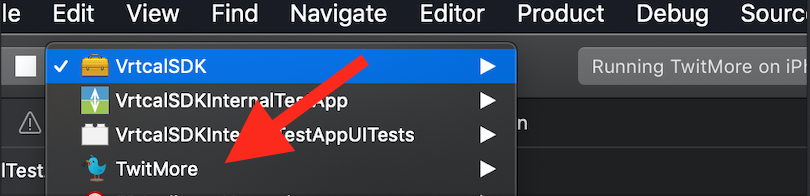
- Switch to TwitMore and Build and Run
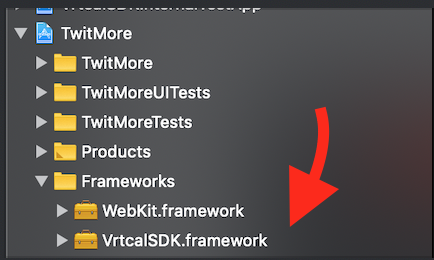
- Verify that the VrtcalSDK.framework appears under the TwitMore Frameworks folder:
- In the TwitMore XCode Project go to Target -> general and update the following values, adding .1 to Version and 1 to build:

- Then, point to Generic iOS Device

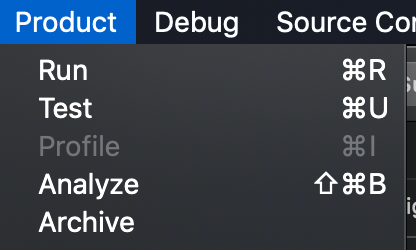
- And now go to Product->Archive
- After Clicking on "Archive", choose Distribute App , then choose App Store Connect, choose Upload:
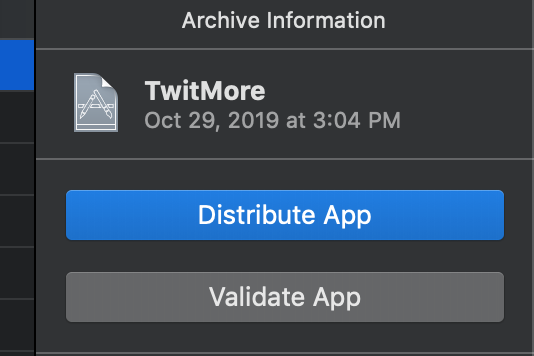
After distributing, the build should begin uploading to the apple developer console.
Navigate to https://developer.apple.com/ , login and go to App Store Connect-> My Apps and choose TwitMore.
Verify that the build is uploading/has uploaded successfully by checking out the iOS Builds under the Activity section!
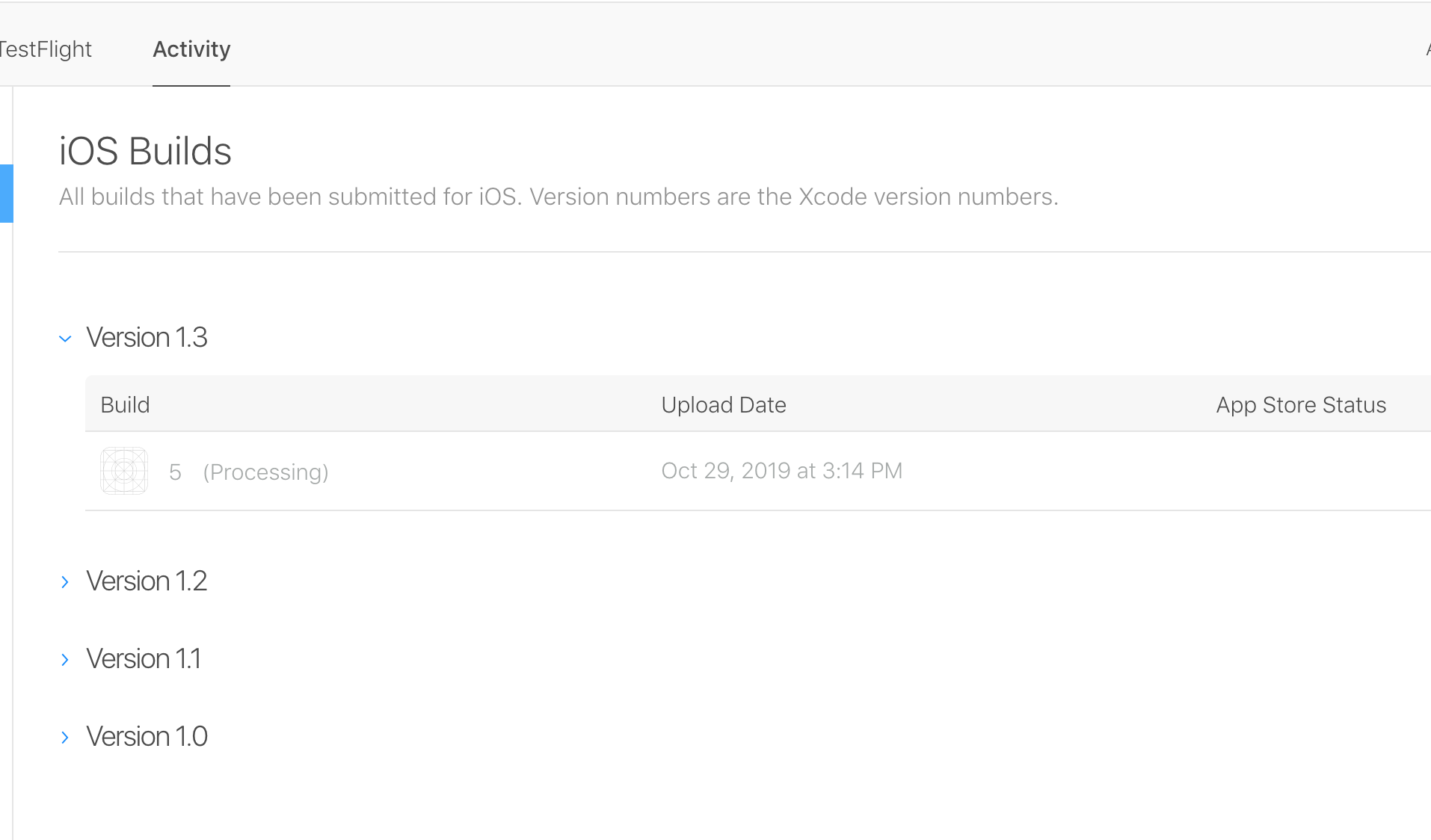
After uploading the build, go to the App Store section and create a new version to prepare for submission.
Update the "What’s new in this version" section
Select the uploaded build
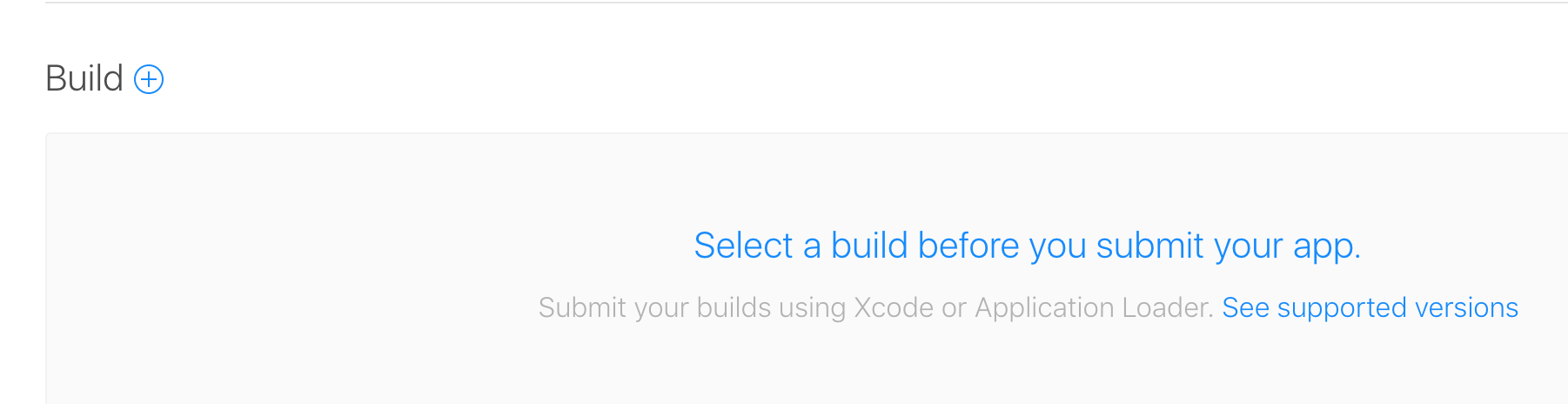
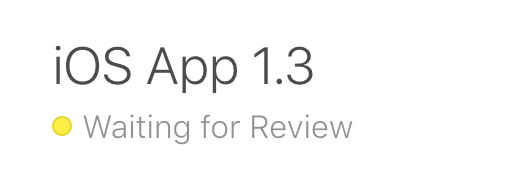
3. Then click "Save" and “Submit for Review” at the top- Upon successful submission a Waiting for Review Page should pop up!